A computer monitor is one of those electronics products that people often buy only after their old screen becomes uncomfortable, outdated or simply too small.
But choosing a monitor is no longer as simple as checking the screen size.
Today, you will find monitors with Full HD, QHD and 4K resolutions, high refresh rates, IPS, VA and OLED panels, USB-C connectivity, built-in speakers, HDR support, adaptive sync, height adjustment and even features designed for connecting multiple computers.
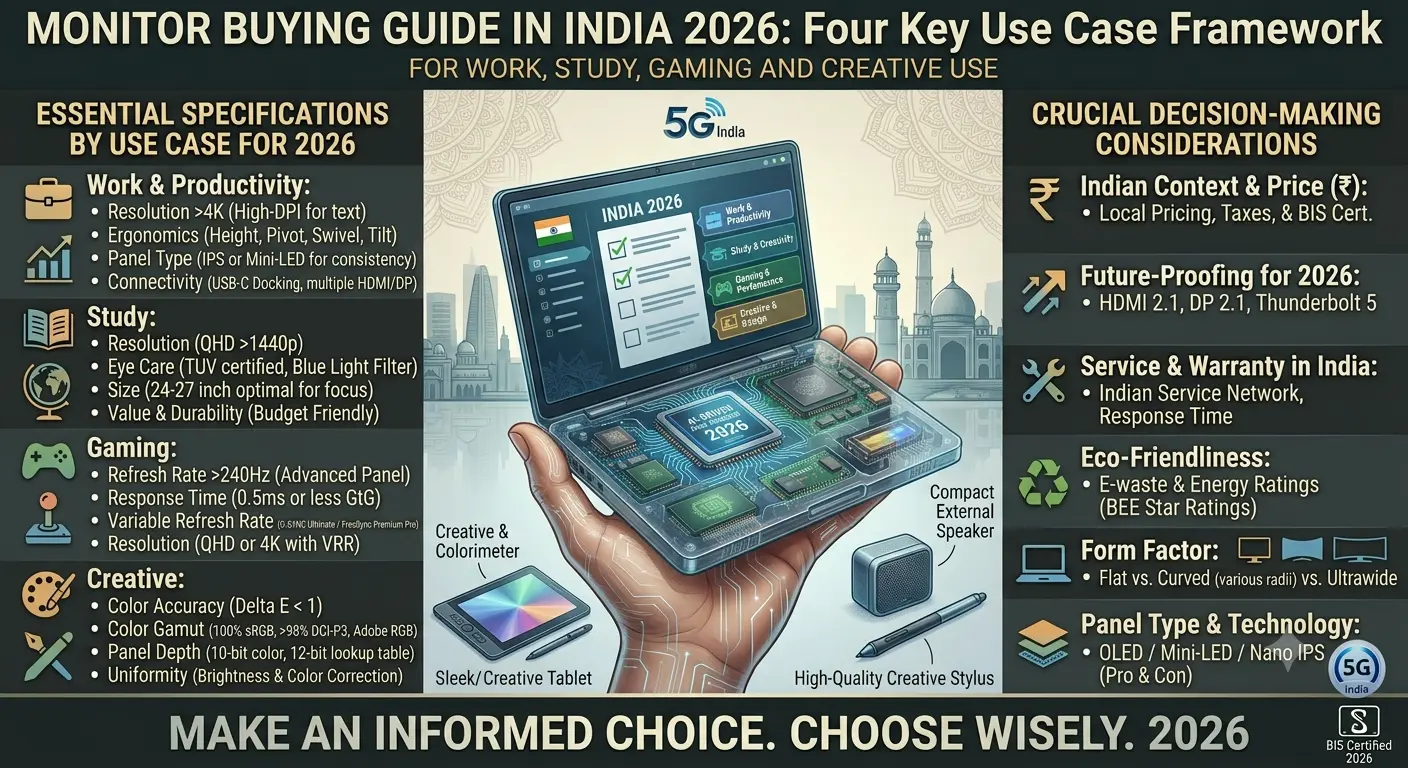
The right choice depends heavily on how you use your computer.
A student who mainly reads documents does not need the same monitor as a competitive gamer. Someone editing photos may care more about colour accuracy, while an office professional may benefit more from USB-C connectivity and an adjustable stand.
This guide explains the most important monitor specifications in simple language so you can choose a display that fits your actual needs in 2026.
What Is a Computer Monitor?
A monitor is an external display used with computers and other compatible devices.
It can be connected to:
- Desktop PCs
- Laptops
- Gaming consoles
- Mini PCs
- Streaming devices
- Some tablets and smartphones
A monitor displays the image generated by the connected device.
This means buying a more expensive monitor does not automatically make a slow computer faster. The computer, graphics hardware, connection and monitor all work together.
How Do You Choose the Right Monitor?
Start with four basic questions:
- What will you use the monitor for?
- What screen size is comfortable for you?
- What resolution does your computer support?
- Which features do you actually need?
After that, compare refresh rate, panel type, ports, ergonomics, colour performance and other features.
This approach is better than choosing a monitor only because it has the largest number printed on the box.
What Monitor Size Should You Buy?
Monitor size is normally measured diagonally in inches.
Common sizes include:
- 22-inch
- 24-inch
- 27-inch
- 32-inch
- Ultrawide displays larger than conventional 16:9 screens
24-inch monitors
A 24-inch monitor can be a practical choice for:
- Students
- Office work
- Browsing
- Basic home use
- Smaller desks
It can provide a comfortable upgrade from a laptop screen without requiring a very large desk.
27-inch monitors
A 27-inch monitor offers more workspace and is particularly popular for:
- Office work
- Programming
- Content creation
- Gaming
- General productivity
However, resolution becomes more important as screen size increases.
32-inch monitors
A 32-inch display can be useful when you want a large working area.
It may suit:
- Video editing
- Gaming
- Large spreadsheets
- Multitasking
- Entertainment
Before buying one, check that your desk has enough depth and that you can sit at a comfortable viewing distance.
What Is Monitor Resolution?
Resolution refers to the number of pixels used to create the image.
Common monitor resolutions include:
- 1920 × 1080 — Full HD
- 2560 × 1440 — QHD
- 3840 × 2160 — 4K UHD
More pixels can provide a sharper image, but higher resolution also requires more graphics performance in many gaming situations.
Full HD: Is 1080p Still Good?
Yes.
Full HD can still be perfectly suitable for many everyday uses.
It can work well for:
- Office applications
- School work
- Web browsing
- Video calls
- General entertainment
- Budget gaming
A 24-inch Full HD monitor can offer a sensible combination of size and image quality for basic users.
However, on larger screens, higher resolutions can provide a sharper image.
QHD or 1440p Monitors
QHD provides more pixels than Full HD and is an increasingly attractive option for users who want a sharper desktop without necessarily moving to 4K.
It can be particularly useful for:
- 27-inch monitors
- Gaming
- Programming
- Photo editing
- Multitasking
- Productivity
For many PC users, QHD can provide a useful middle ground between Full HD and 4K.
4K Monitors
4K monitors provide substantially more pixels than Full HD.
They can be attractive for:
- Photo editing
- Video work
- High-resolution content
- Professional productivity
- Large-screen desktop use
The important point is that 4K is not automatically better for every user.
If your computer struggles to drive your applications or games at 4K, a QHD monitor may provide a better overall experience.
What Is Refresh Rate?
Refresh rate is measured in hertz, or Hz.
It indicates how many times the display can refresh the image each second.
Common refresh rates include:
- 60Hz
- 75Hz
- 100Hz
- 120Hz
- 144Hz
- 165Hz
- 240Hz
- Higher rates on specialised gaming monitors
A higher refresh rate can make motion appear smoother when the computer or console can provide enough frames.
Is 60Hz Enough?
For basic office work, browsing and many everyday tasks, 60Hz can still be usable.
However, displays with higher refresh rates can make scrolling, cursor movement and supported gaming feel smoother.
If the price difference is reasonable, a higher-refresh-rate monitor can therefore be an attractive choice even for general-purpose use.
Do Gamers Need a High Refresh Rate?
Gaming is one of the areas where refresh rate can become particularly important.
Competitive players may prefer high-refresh-rate displays because smoother motion can be useful during fast gameplay.
But there is little value in paying for an extremely high refresh rate if your computer cannot consistently produce enough frames to take advantage of it.
Your graphics card and the games you play should therefore be considered alongside the monitor.
What Is Response Time?
Response time describes how quickly a display pixel can change from one state to another under a specified measurement method.
You may see monitor specifications advertising very low response times.
However, numbers from different manufacturers are not always directly comparable because measurement methods can vary.
Instead of choosing a monitor solely because the box says "1ms", look at independent testing when available and consider the overall display performance.
What Is Adaptive Sync?
Adaptive sync technologies help synchronize the display's refresh behaviour with the frame output from compatible graphics hardware.
This can reduce visual problems such as screen tearing and can make gaming feel smoother.
Depending on the monitor and graphics hardware, you may encounter technologies such as:
- AMD FreeSync
- NVIDIA G-SYNC
- VESA Adaptive-Sync
Compatibility should be checked before purchasing.
IPS vs VA vs OLED
Panel technology is another major consideration.
IPS panels
IPS displays are widely used because they can offer good viewing angles and balanced image quality.
They are commonly suitable for:
- Office work
- Programming
- Gaming
- Photo editing
- General use
VA panels
VA technology can provide strong contrast and deep-looking blacks compared with many conventional LCD designs.
It can be attractive for:
- Movies
- Gaming
- General entertainment
- Users who prefer stronger contrast
OLED panels
OLED monitors are a premium category.
They can provide excellent contrast and very deep blacks because individual pixels can be controlled differently from conventional backlit LCD panels.
OLED can be especially attractive for:
- High-end gaming
- Premium entertainment
- Creative work
- Users who value image quality
However, OLED displays can be more expensive, and buyers should understand the manufacturer's guidance regarding long-term static content and panel care.
Which Panel Is Best?
There is no universal winner.
For a normal office or home PC, IPS can be a sensible all-round option.
For users who prioritise contrast, VA can be attractive.
For premium gaming and image quality, OLED can be compelling.
Your budget and usage should determine the choice.
What Is HDR?
HDR stands for High Dynamic Range.
HDR aims to provide a wider range between darker and brighter parts of an image while also supporting suitable colour and brightness characteristics.
But an "HDR" label alone does not guarantee an impressive HDR experience.
When comparing monitors, look at the actual brightness capability, HDR certification where applicable, contrast characteristics and independent reviews.
Colour Accuracy Matters for Creative Work
If you work with:
- Photography
- Graphic design
- Video editing
- Digital illustration
- Product design
colour performance can be more important than an extremely high refresh rate.
Look for information about:
- Colour gamut
- Factory calibration
- Colour accuracy
- Supported colour spaces
- Calibration options
A gaming monitor with a very high refresh rate is not automatically the best choice for professional colour work.
What Is a Wide Colour Gamut?
Colour gamut describes the range of colours a display can reproduce.
You may encounter specifications referring to standards such as:
The appropriate target depends on the type of work you perform.
For ordinary web and office work, broad professional colour coverage may not be necessary.
For photography and video production, it can become much more important.
Why Monitor Ports Matter
A monitor can have excellent image quality but still be inconvenient if it lacks the connections you need.
Common ports include:
- HDMI
- DisplayPort
- USB-C
- USB-A
- 3.5mm audio
- Other display or docking connections depending on the model
Always check the exact port version and capabilities rather than simply counting the number of ports.
Is USB-C Important?
USB-C can be extremely useful, particularly for laptop users.
Depending on the monitor, a USB-C connection may support video, data and power delivery through a single cable.
This can reduce cable clutter on a desk.
However, not every USB-C port provides the same capabilities.
Before buying, check:
- Video input support
- Power delivery wattage
- USB data capability
- Compatibility with your laptop
What Is a Built-In USB Hub?
Some monitors include USB ports that act as a hub.
This can allow you to connect accessories such as:
- Keyboard
- Mouse
- USB storage
- Other peripherals
A USB hub can be particularly convenient when the monitor is being used with a laptop.
What Is KVM?
KVM stands for Keyboard, Video and Mouse.
A monitor with a KVM feature can allow compatible peripherals to be shared between multiple computers.
This can be useful if you regularly switch between:
- A work laptop
- A personal desktop
- Another computer
It is not essential for everyone, but it can make a multi-computer workspace much cleaner.
Why an Adjustable Stand Matters
A monitor should not only look good.
It should also be comfortable to use for long periods.
A good stand may offer:
- Height adjustment
- Tilt adjustment
- Swivel
- Pivot
Not every monitor includes all of these features.
If the included stand is basic, check whether the monitor supports a compatible VESA mounting system.
What Is VESA Mounting?
VESA mounting allows compatible monitors to be attached to monitor arms or wall mounts using standard mounting patterns supported by the product.
This can help improve desk ergonomics and free up desk space.
Before buying a monitor arm, confirm the monitor's mounting pattern and weight compatibility.
Flat vs Curved Monitor
Curved displays are popular in gaming and ultrawide monitor categories.
A curved monitor can provide a more immersive viewing experience, particularly on wider screens.
Flat displays can be simpler for:
- Office work
- Design
- General computing
- Multi-monitor arrangements
Neither design is automatically better.
Consider the screen size, viewing distance and type of work you perform.
What Is an Ultrawide Monitor?
Ultrawide monitors have a wider aspect ratio than traditional 16:9 displays.
They can provide additional horizontal workspace.
This can be useful for:
- Video editing timelines
- Large spreadsheets
- Programming
- Multitasking
- Racing games
- Productivity
An ultrawide monitor can sometimes replace a dual-monitor setup, although it depends on your workflow.
Single Monitor or Dual Monitors?
Two monitors can make multitasking easier.
For example, you can keep:
- Email on one screen
- Documents on another
Or:
- Code on one monitor
- Browser and testing tools on another
However, a single large or ultrawide display may provide a cleaner setup with fewer cables.
The best choice depends on your desk and workflow.
Monitor for Office Work
For office use, prioritise:
- Comfortable size
- Good resolution
- Clear text
- Adjustable stand
- Eye-comfort features
- Suitable connectivity
- Reliable warranty
You do not necessarily need an expensive gaming monitor.
A good productivity monitor should make long working sessions easier rather than simply advertise extreme specifications.
Monitor for Students
Students can focus on:
- Affordable price
- Comfortable size
- Clear text
- Full HD or higher resolution
- Good viewing angles
- HDMI connectivity
- Low power consumption
If the monitor will also be used for gaming, a higher refresh rate may be worth considering.
Monitor for Gaming
Gaming buyers should examine:
- Refresh rate
- Response behaviour
- Adaptive sync support
- Resolution
- Graphics-card capability
- Input connections
- Panel performance
Do not select a monitor based only on the highest refresh rate.
A balanced combination of resolution, refresh rate and graphics performance is usually more useful.
Monitor for Programming
Programmers can benefit from:
- Sharp text
- Higher resolution
- Large screen size
- Good viewing angles
- USB-C connectivity
- Height adjustment
- Pivot support
A monitor that can rotate vertically can be particularly useful for reading long documents or viewing code.
Monitor for Photo and Video Editing
Creative users should pay attention to:
- Colour accuracy
- Colour gamut
- Resolution
- Uniformity
- Calibration
- Connectivity
A high-refresh-rate gaming monitor may not be the best investment if colour accuracy is your main priority.
Common Monitor Buying Mistakes
Mistake 1: Choosing only by screen size
A larger screen with low resolution may not provide the sharpness you expect.
Mistake 2: Buying the highest refresh rate
Your computer may not be able to take advantage of it.
Mistake 3: Ignoring ports
A monitor without the connection you need can become inconvenient immediately.
Mistake 4: Ignoring the stand
A poor stand can make an otherwise excellent monitor uncomfortable.
Mistake 5: Assuming every HDR monitor is equally good
HDR implementation varies considerably.
Mistake 6: Buying OLED without understanding its characteristics
OLED can offer excellent image quality, but buyers should understand its long-term usage considerations.
Mistake 7: Forgetting desk space
A large or ultrawide monitor needs appropriate desk depth and width.
Monitor Buying Checklist
Before purchasing, check:
What Monitor Should You Choose?
For basic home use
A 24-inch Full HD monitor can be a practical starting point.
For office productivity
Consider a comfortable 24- to 27-inch display with good text clarity and an adjustable stand.
For programming
A 27-inch QHD monitor can provide useful screen space and sharper text.
For gaming
Look for a suitable combination of resolution, refresh rate, response performance and adaptive sync.
For creative work
Prioritise colour accuracy, gamut, resolution and calibration rather than chasing the highest refresh rate.
For laptop users
USB-C connectivity and power delivery can make a significant difference to desk convenience.
For multitasking
Consider a larger QHD display, ultrawide monitor or dual-monitor setup depending on your workflow.
Finally
Choosing a computer monitor in 2026 is about finding the right balance rather than buying the most expensive display available.
Start with your actual workload.
A student may need a simple and comfortable screen. An office worker may value ergonomics and USB-C. A programmer may prefer sharper resolution and more workspace. A gamer may prioritise refresh rate and adaptive sync, while a photographer or video editor may care more about colour accuracy.
Screen size, resolution, refresh rate and panel type all matter, but none of them should be considered in isolation.
Also remember to check the monitor's ports, stand, mounting options and compatibility with your computer.
The best monitor is the one that fits your desk, your hardware and your daily work—not simply the one with the biggest specification sheet.